Payment Types
All riders need to pay their bus fare when riding Golden Gate Transit.
As of December 10, 2025, we now accept contactless bank cards in addition to Clipper cards (plastic and mobile) and cash.
New! Contactless Bank Card Payments
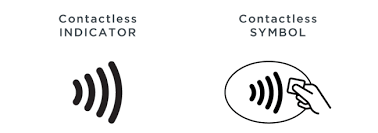
Transit riders can now pay adult fares using contactless credit or debit cards, or mobile payment methods such as Apple Pay and Google Pay on Golden Gate Transit.
Contactless bank card payments automatically default to the Clipper fare.
- Each rider must have their own contactless card or mobile wallet
- Contactless bank card payments are only good for adult Clipper fares. Youth, senior, disabled, Medicare, and Clipper START discounts are not available with contactless bank cards.
- Contactless bank cards must be chip-enabled and have the contactless symbol.
- Get charged correctly! Tap on AND off on Golden Gate Transit buses!
- If you have a Clipper card added to your mobile wallet, payments will default to your mobile Clipper card instead of your contactless bank card unless you disable Express Transit (iPhone) or remove the Clipper card (Android).
- Tap on and off with the same card/device.
- To ensure that the correct card gets charged, riders should remove their card from their wallet before tapping on.
Clipper Cards (Plastic and Mobile)
Each passenger needs their own Clipper account or plastic Clipper card. Tap on AND off on Golden Gate Transit buses!
- Green Light + 1 beep. Good to go.
- Yellow Light + 2 beeps. You are good to go, but your remaining balance is less than $2.
- Red Light + 3 beeps. Your card wasn’t accepted. Tap again or use another payment method.
New! How to Check Balances
Clipper readers no longer display your balance; however there are several ways to check.
- Log into the Clipper app or clippercard.com website
- Check your mobile wallet
- Tap card at a ticket vending machines (TVM)
- Call Clipper customer service at 877.878.8883
- To request a refund or adjustment or to report a lost or damaged card, visit the Clipper Customer Support webpage
How to Buy
- To purchase mobile cards or plastic cards, visit clippercard.com.
- For youth, senior, disabled (Clipper Access), and Clipper START cards, visit clippercard.com.
- Cards can be purchased in person at Golden Gate Transit Customer Service Center at the San Rafael Transit Center.
Cash
When boarding the bus, tell the driver your final destination so the appropriate fare can be charged.
- Insert your cash and coins into the farebox.
- The farebox will not accept bills over $20.
- Bills should be flat and unfolded.
- Drop coins one at a time.
- Exact change is recommended as drivers do not give change.
- If you are due more than $1 in change, you will be issued a change card to use on future Golden Gate Transit trips. The value of the change card will be printed on the back.
Using a Change Card
Insert the change card in the activation slot on the top left of the farebox. The farebox will deduct the appropriate fare and the remaining balance will be printed on the back of the card. If the remaining balance on your change card is less than your appropriate fare, you can use up to three (3) change cards to pay your fare (insert the lowest balance card first) or you can combine change card(s) with cash to pay your fare. Change cards are non-refundable and not exchangeable.
Clipper & Contactless Payment FAQs
A:
Beginning December 10, 2025, Golden Gate Transit and Golden Gate Ferry riders can pay adult Clipper fares using plastic or mobile contactless bank cards.
This payment option will be accepted on all Bay Area transit agencies.
back to top
A:
- Riders using a contactless bank card will be charged the adult Clipper fare.
- One card per rider. Each rider must pay with their own card or mobile device.
- To be charged correctly, you must tap on and off with the same card/device on Golden Gate Transit (Golden Gate Ferry riders only tap ON).
- Discounted fares through Clipper Youth, Senior, RTC/Clipper Access and Clipper START programs are NOT available through contactless bank card payment. Riders must use their discount program-issued Clipper cards to receive these discounted fares.
- If you have a Clipper card added to your mobile wallet, payments will default to your mobile Clipper card instead of your contactless bank card unless you disable Express Transit (iPhone) or remove the Clipper card (Android).
back to top
A:
- Riders can use plastic or mobile contactless banks cards—credit or debit.
- Visa, Mastercard, American Express, and Discover cards are accepted.
back to top
A:
- Look for the contactless symbol on the front or back of your bank card.
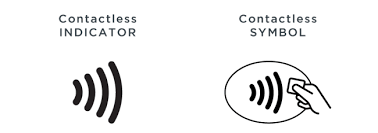
- If you see this symbol, you can use your contactless bank card to pay for your fare.
- Accepted card brands are Visa, Mastercard, American Express, and Discover.
back to top
A:
Plastic contactless bank card
- Remove the physical payment card from your wallet
- Center your card over the Clipper reader
- On a successful tap, a green light will appear on the screen.
Contactless bank card in my Apple Wallet
- Note: Apple device users should set up “Express Transit” for the bank card they want to use or should select the card they want to use from their Apple Wallet before tapping*
- To set up Express Transit:
- Open Apple Wallet and choose the contactless bank card you want to use to pay your fare.
- Tap the three dots in the upper right-hand corner and select "Card Details."
- Tap "Express Transit Settings" and follow the prompts.
- To pay:
- Center your device over the Clipper reader—no need to unlock your phone
- On a successful tap, a green light will appear on the screen
*Note: If you have a Clipper card added to your mobile wallet, payments will default to your mobile Clipper card instead of your contactless bank card unless you disable Express Transit.
back to top
A:
- Open Google Wallet and choose the contactless bank card you want to use to pay for your fare*
- To pay, unlock your device and center it over the Clipper reader
- If you prefer to pay without unlocking your device, turn off the “Verification required” setting:
- Open the Google Wallet app. At the top right, tap your Profile picture or Account and then Wallet settings
- Under “Security,” tap Verification settings and then Transit payments
- Turn off Verification required
- On a successful tap, a green light will appear on the machine
*Note: If you have a Clipper card added to your mobile wallet, payments will default to your mobile Clipper card instead of your contactless bank card unless you remove the Clipper card (Android).
back to top
A:
- No, you will be charged the full adult Clipper fare when you pay with a contactless bank card.
- Discounted fares through Clipper Youth, Senior, RTC/Clipper Access and Clipper START programs are NOT available through contactless bank card payment.
- Riders must use their discount program-issued Clipper cards to receive these discounted fares.
- Youth and Senior Clipper cards can now be applied for online at clippercard.com
back to top
A:
- No, each rider must pay with their own card.
- On Golden Gate Transit, riders must use the same card or device to tap on AND tap off.
- On Golden Gate Ferry, riders only need to tap ON.
back to top
A:
- Card clash occurs when a Clipper reader detects more than one card at a time, which can result in card reader errors (i.e., three beeps, red light and tap again messages) or having the wrong card charged.
- This applies to both Clipper cards and contactless bank cards, including cards in digital wallets.
We recommend:
- Remove the physical payment card from your wallet.
- Center your card over the Clipper reader.
- Tap on and off with the same card/device on Golden Gate Transit. (Only tap ON with Golden Gate Ferry)
- On a successful tap, a green light will appear on the screen.
back to top
A:
- When using a physical payment card, remove your plastic card from your wallet before tapping to pay at a Clipper reader.
- When using a card in your mobile wallet, keep your physical cards separate from your phone or watch when tapping.
- Note: If you have a Clipper card added to your mobile wallet, payments will default to your mobile Clipper card instead of your contactless bank card unless you disable Express Transit (iPhone) or remove the Clipper card (Android).
back to top
A:
- You can easily review your transaction history with your contactless bank card on Clipper’s website
- Enter your payment card number, expiration date and CVV. You can also check your bank statement
back to top
A:
- Yes, if your transit benefits debit card is contactless enabled (or can be added to your phone’s mobile wallet), you can use it.
- Make sure to have sufficient transit balance on your card to pay your fare.
- Note: Some customers with HealthEquity debit cards have reported issues tapping their plastic cards, even with sufficient funds in their account. This is a known issue with some HealthEquity plastic cards, and we are working with HealthEquity to ensure that this is addressed. If this issue arises for you, you should contact HealthEquity and request a replacement card.
back to top
A:
Golden Gate Transit and Golden Gate Ferry customer service representatives do not have access to Clipper customer accounts.
Contact Clipper Customer Service at 877.878.8883 or at custserv@clippercard.com and someone will help you with your request.
back to top